 DESK
DESKYour phone and PC,
side by side.
A two-pane file manager for your Android phone and your Windows PC. Open a folder on each side and copy across, at home or away. Directly between your own devices: no cloud, no account.
- No cloud
- No account
- Encrypted
- Free
One app for everything you move between phone and PC
Five tools that share one link between your devices. Every picture here is the real app.
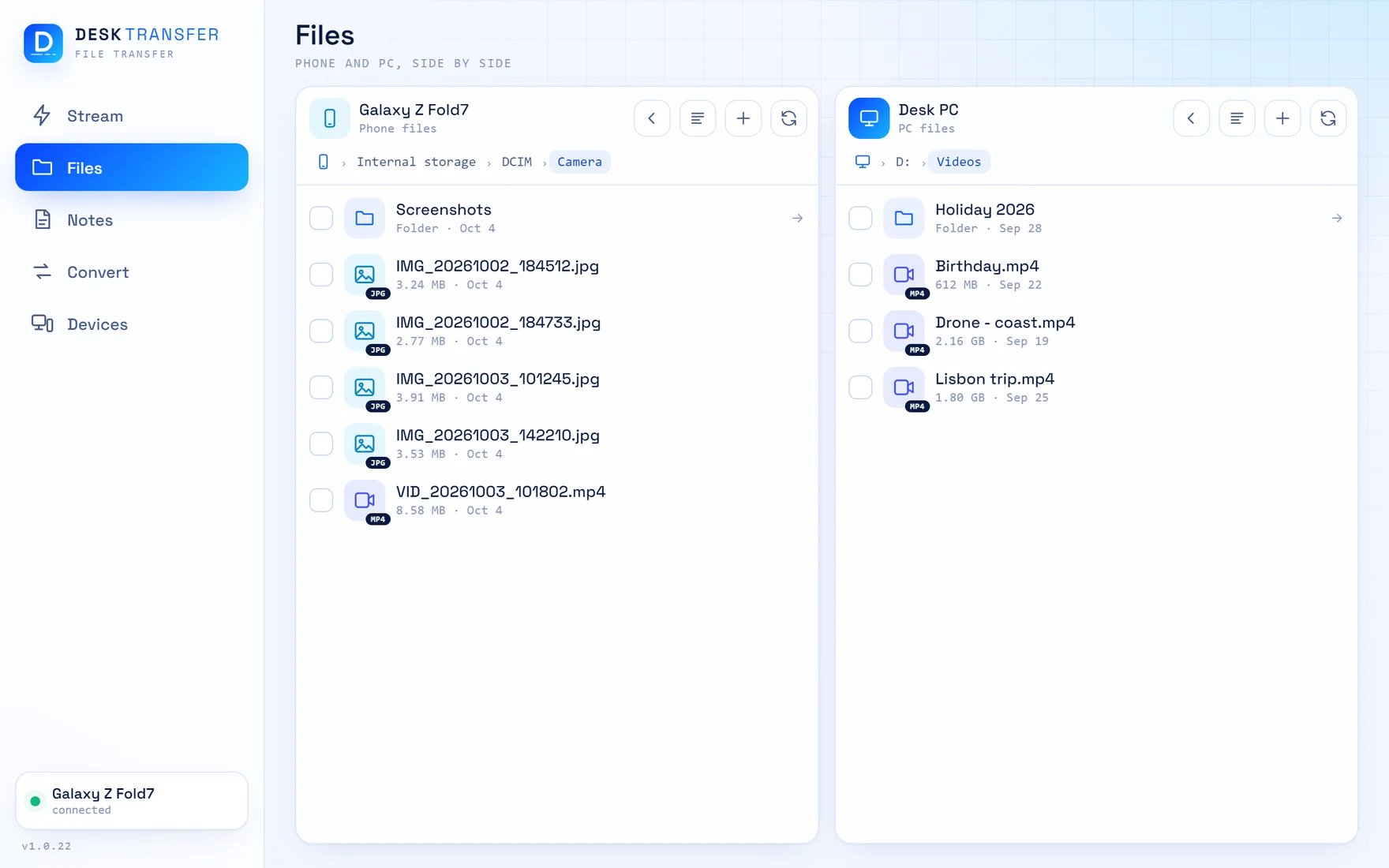
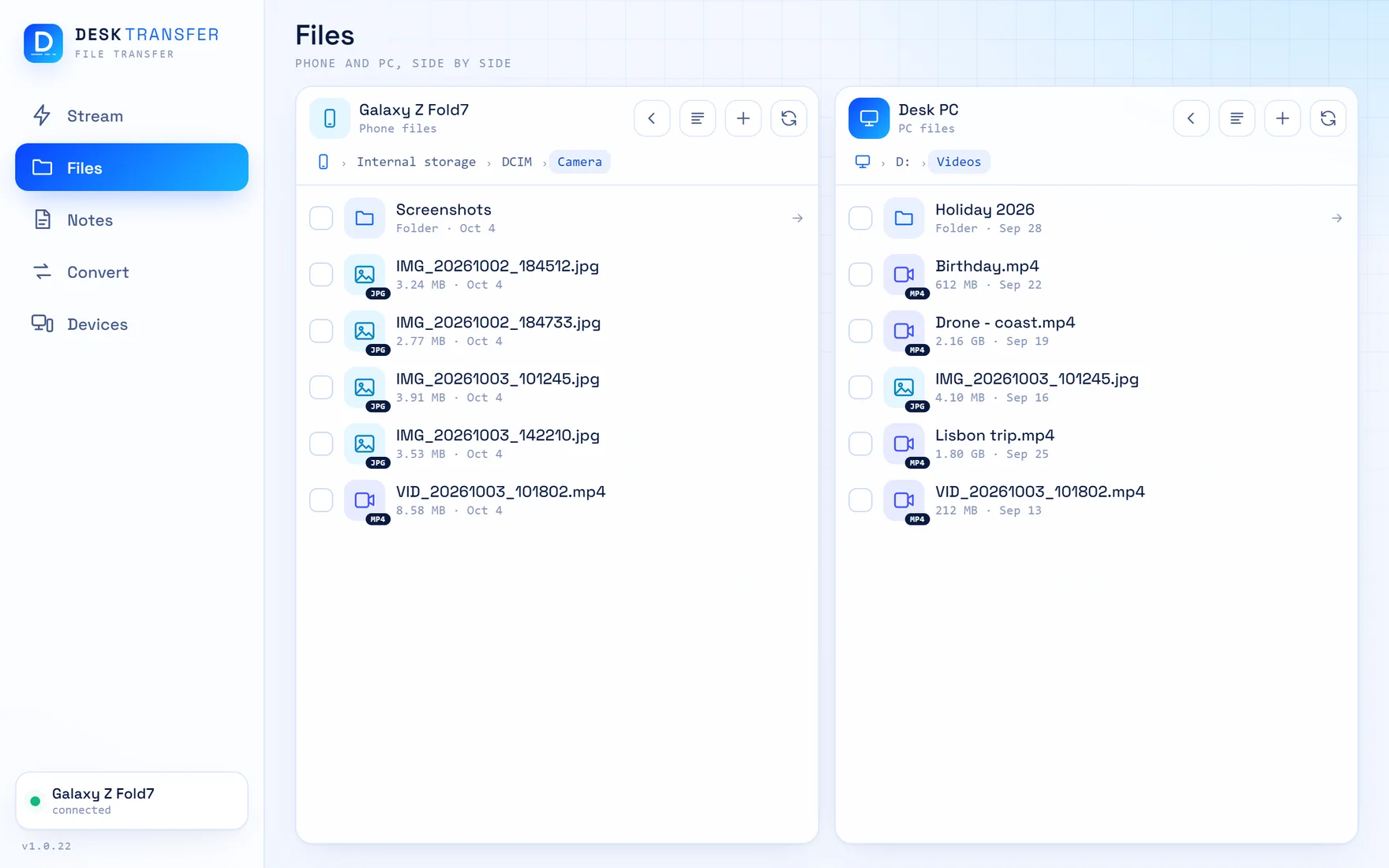
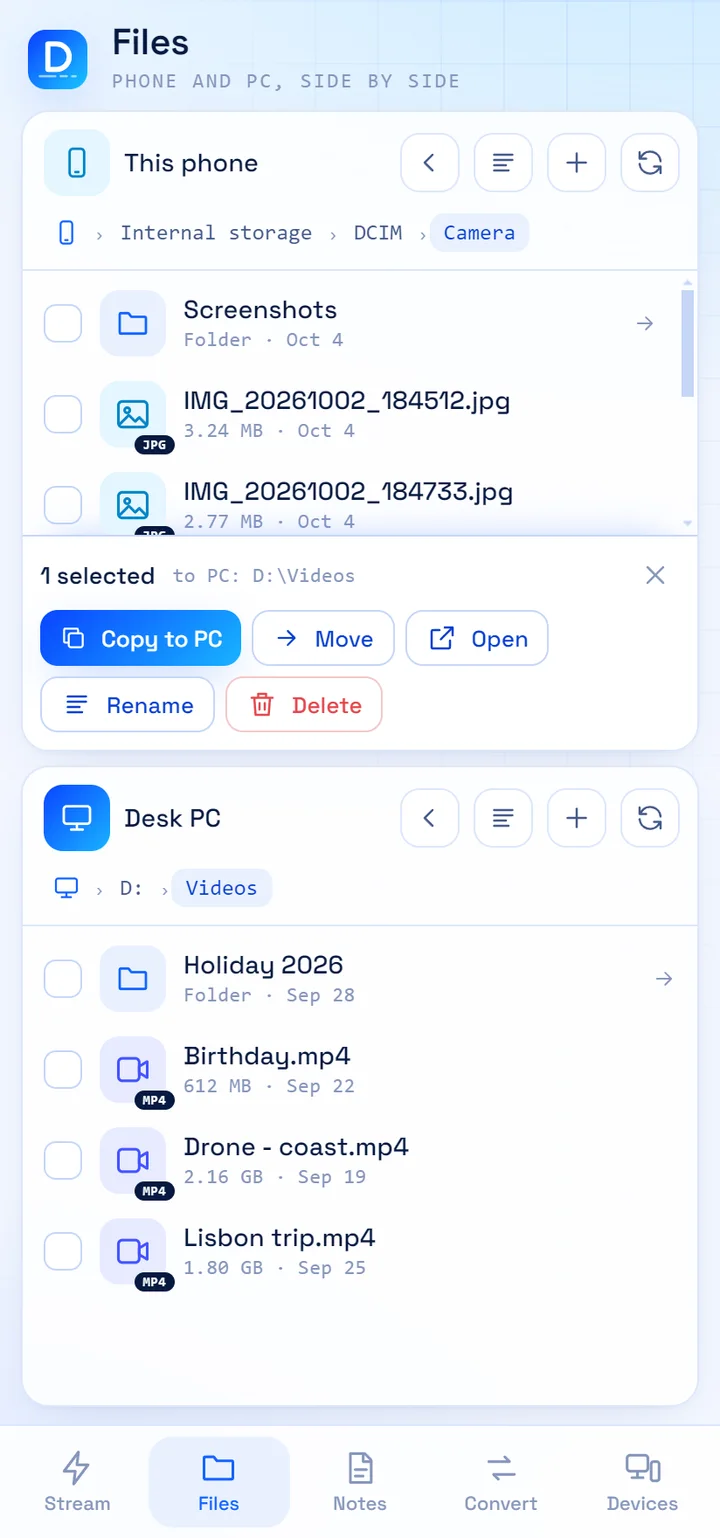
Two panes: your phone and your PC
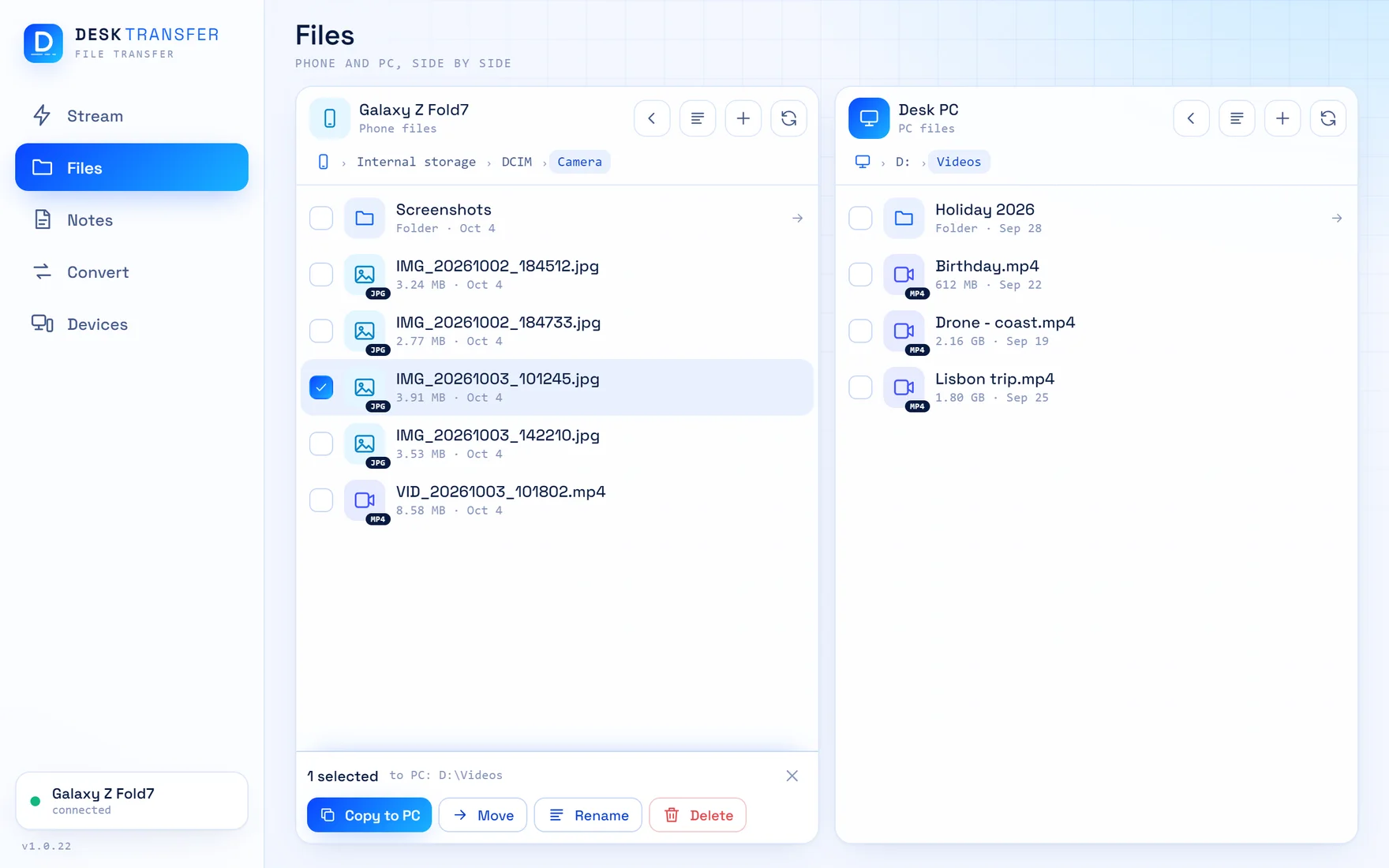
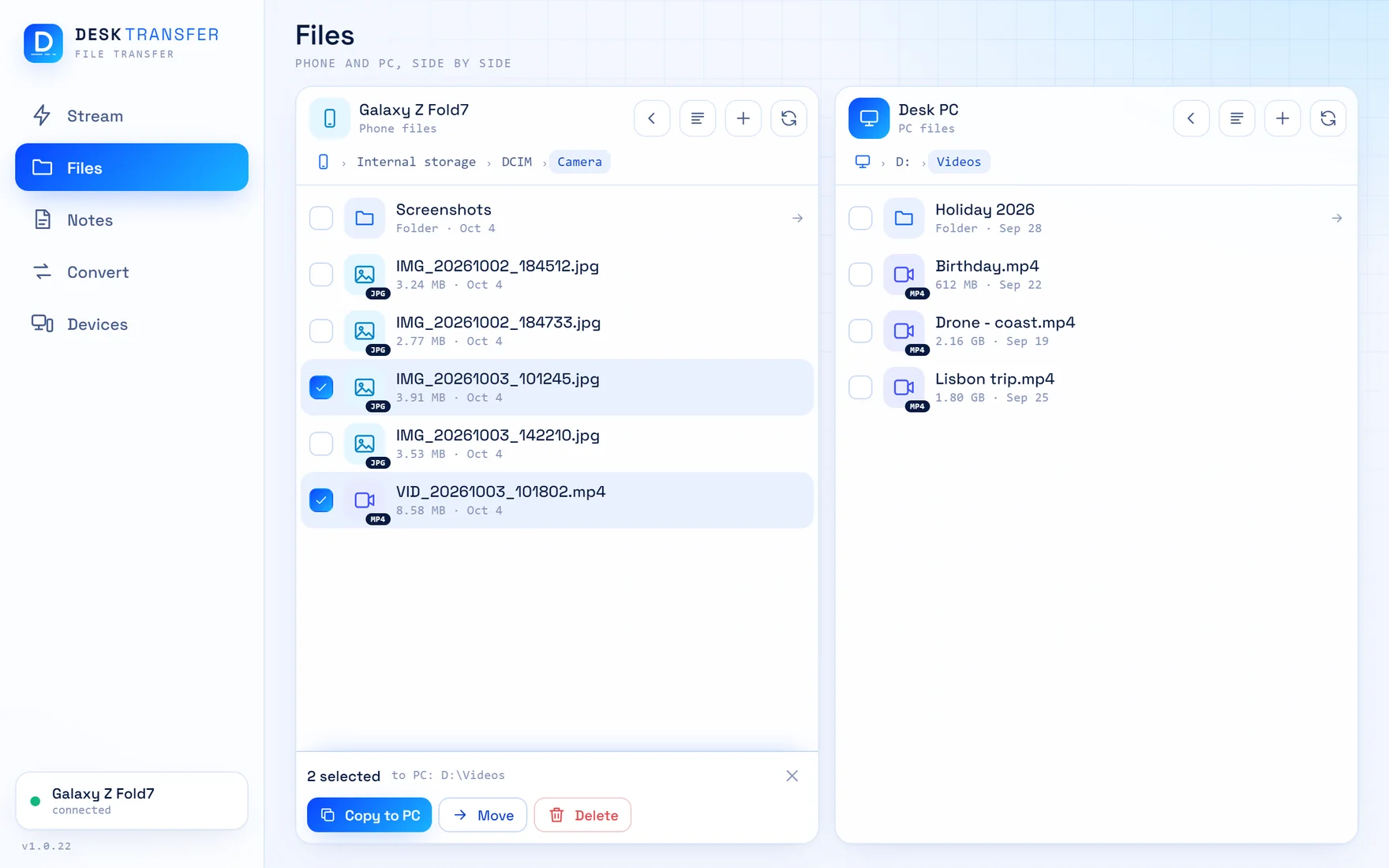
The phone's folders on one side, the PC's on the other. Go to the folder you want on each side, tick files or whole folders, and that is where they land. No hunting through a Downloads folder afterwards.
- Browse every drive and folder of the PC from the phone
- Copy or move, in both directions, whole folders too
- Rename, delete and make folders on either side
- Live speed and time left while it runs
- A file is never overwritten: a second copy gets a new name
Your PC's files, wherever you are
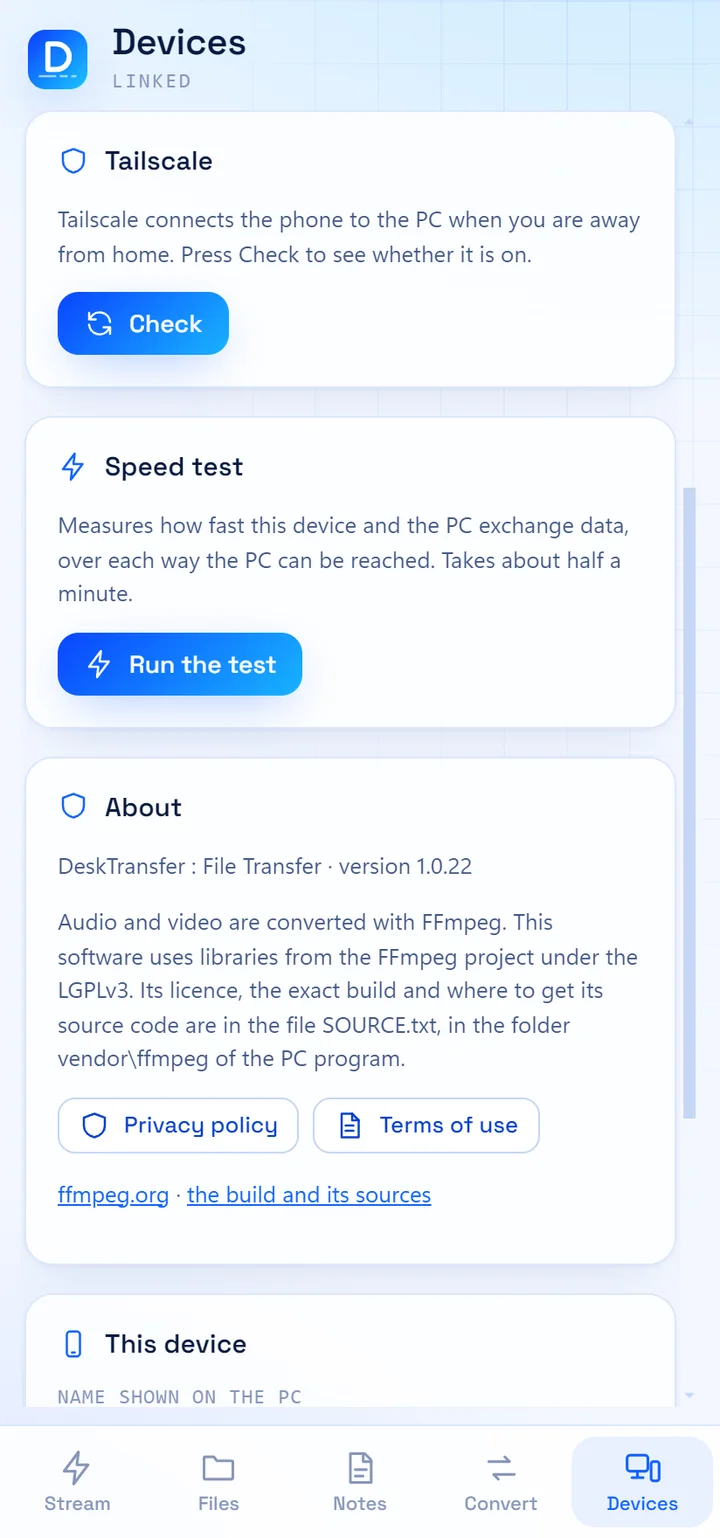
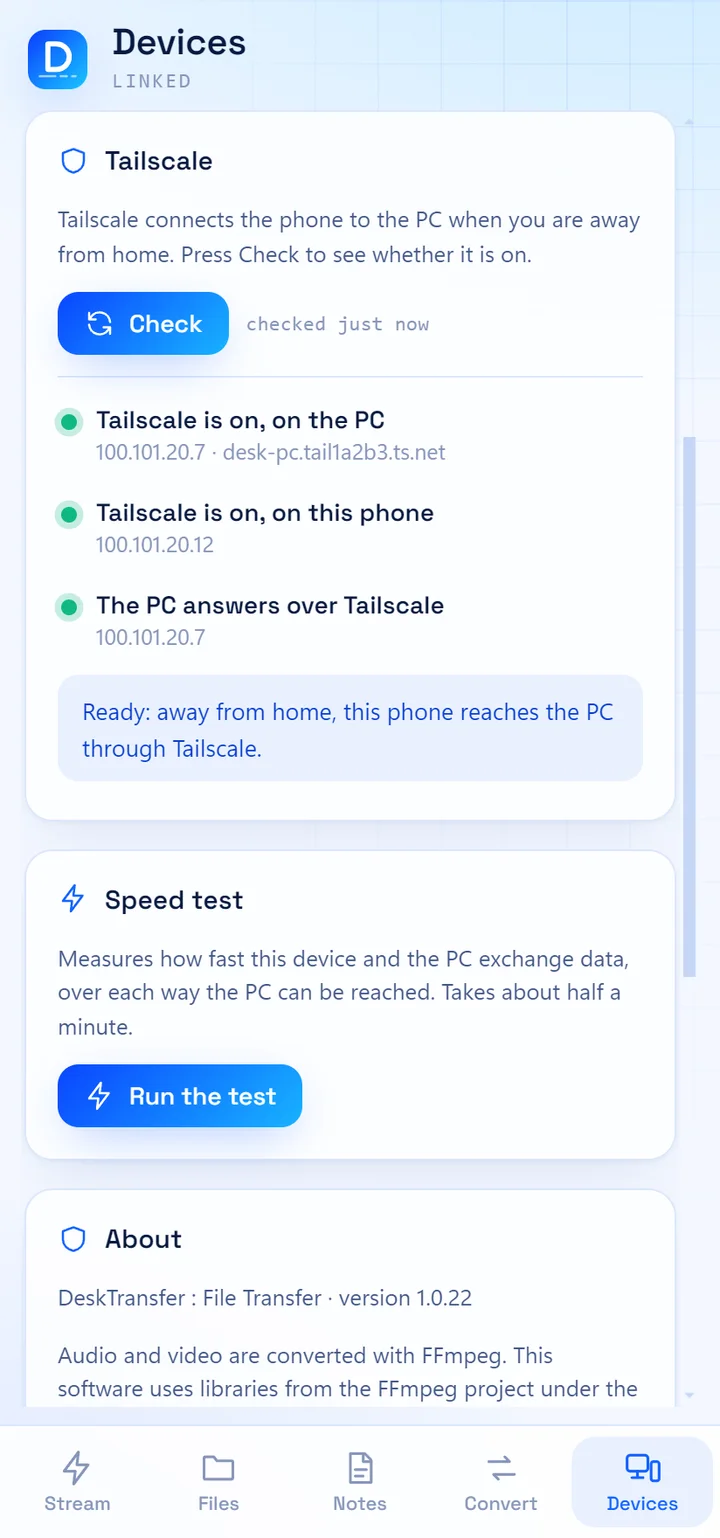
At home, phone and PC talk over your Wi-Fi. Outside, DeskTransfer reaches your PC through Tailscale, a free private network that you set up yourself. The same file manager, the same stream, from a train or another country.
- One press shows whether the way home is open
- The phone picks the right route by itself: Wi-Fi at home, Tailscale outside
- Still device to device and encrypted: nothing passes through us
- A speed test shows what each route delivers
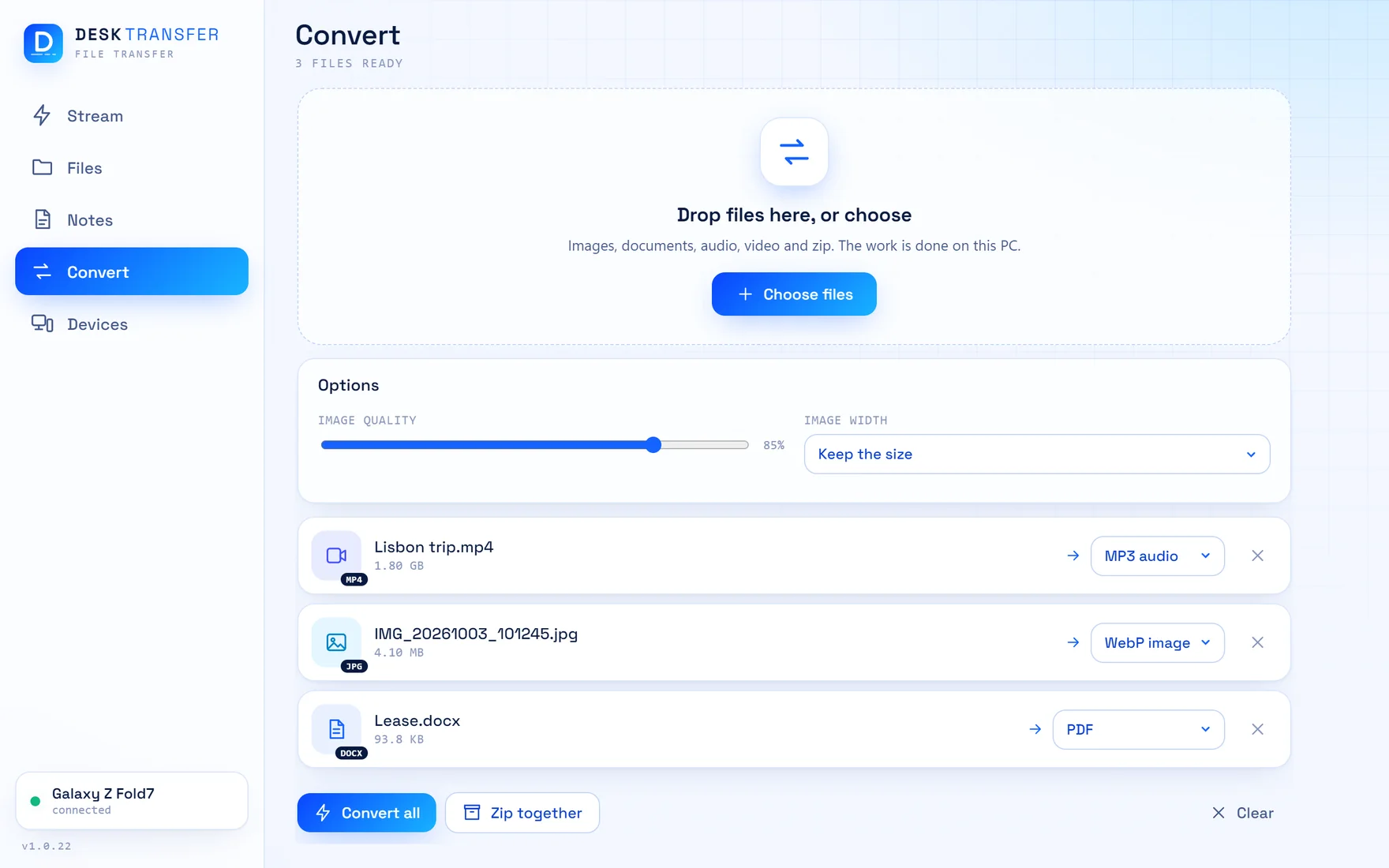
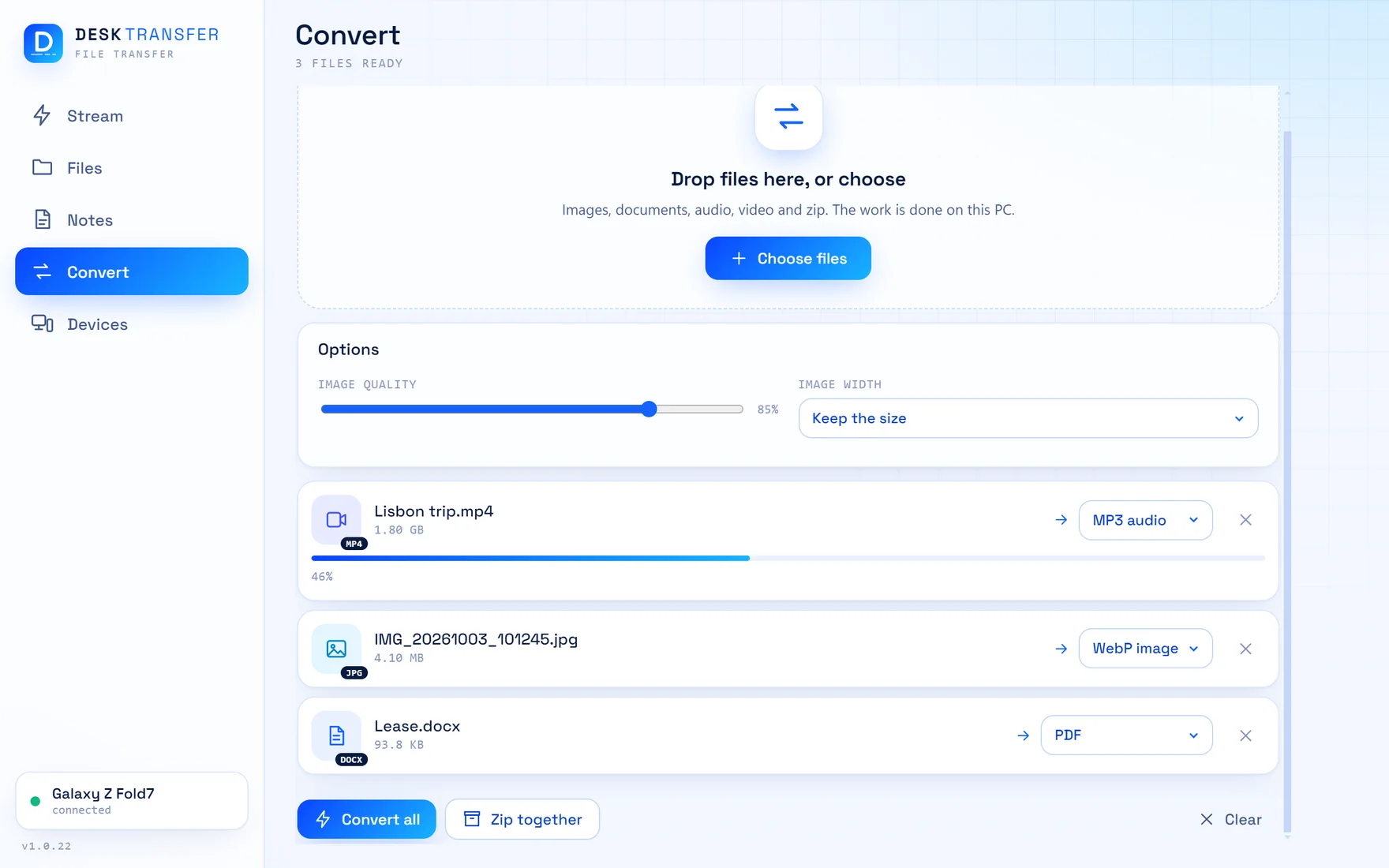
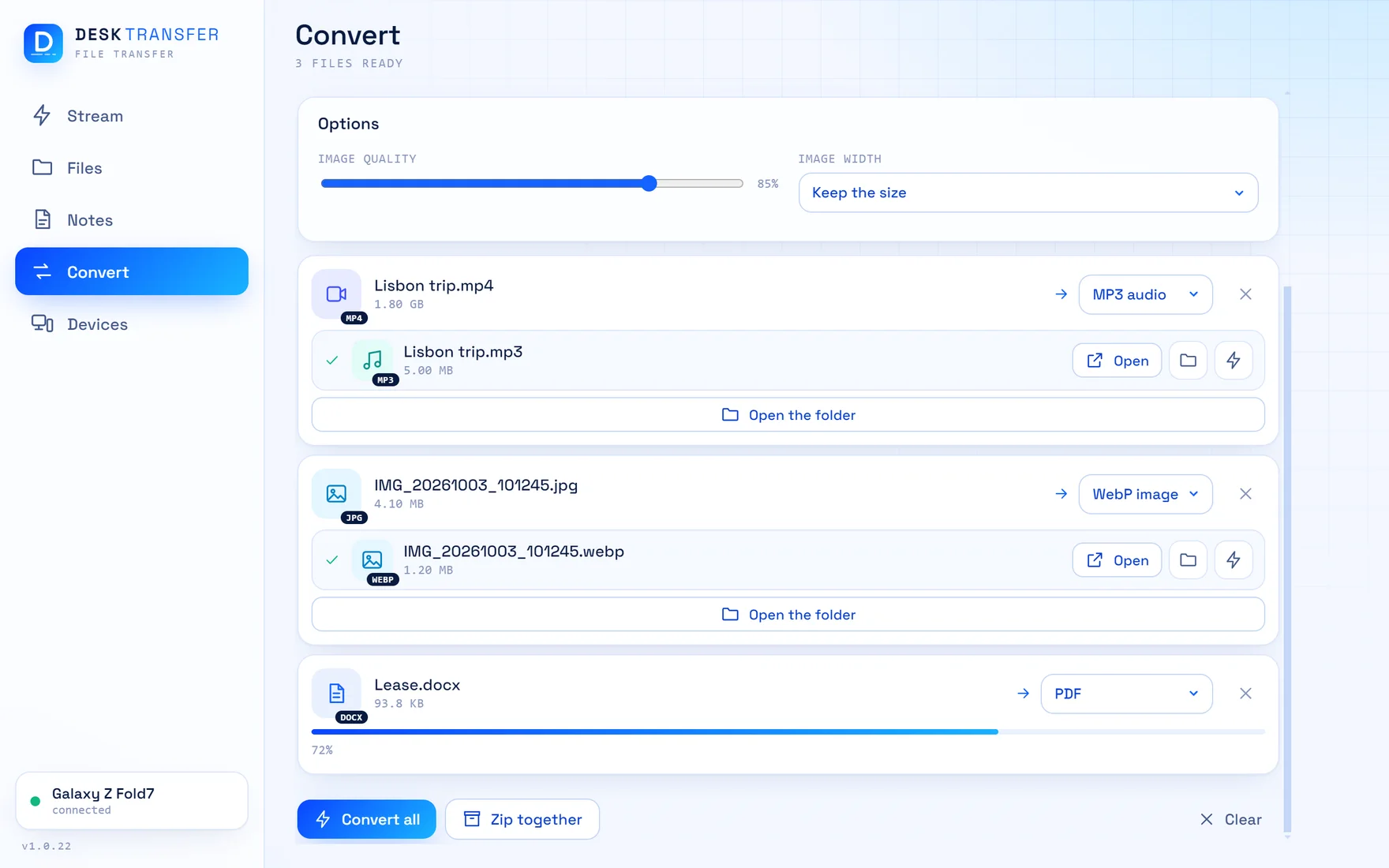
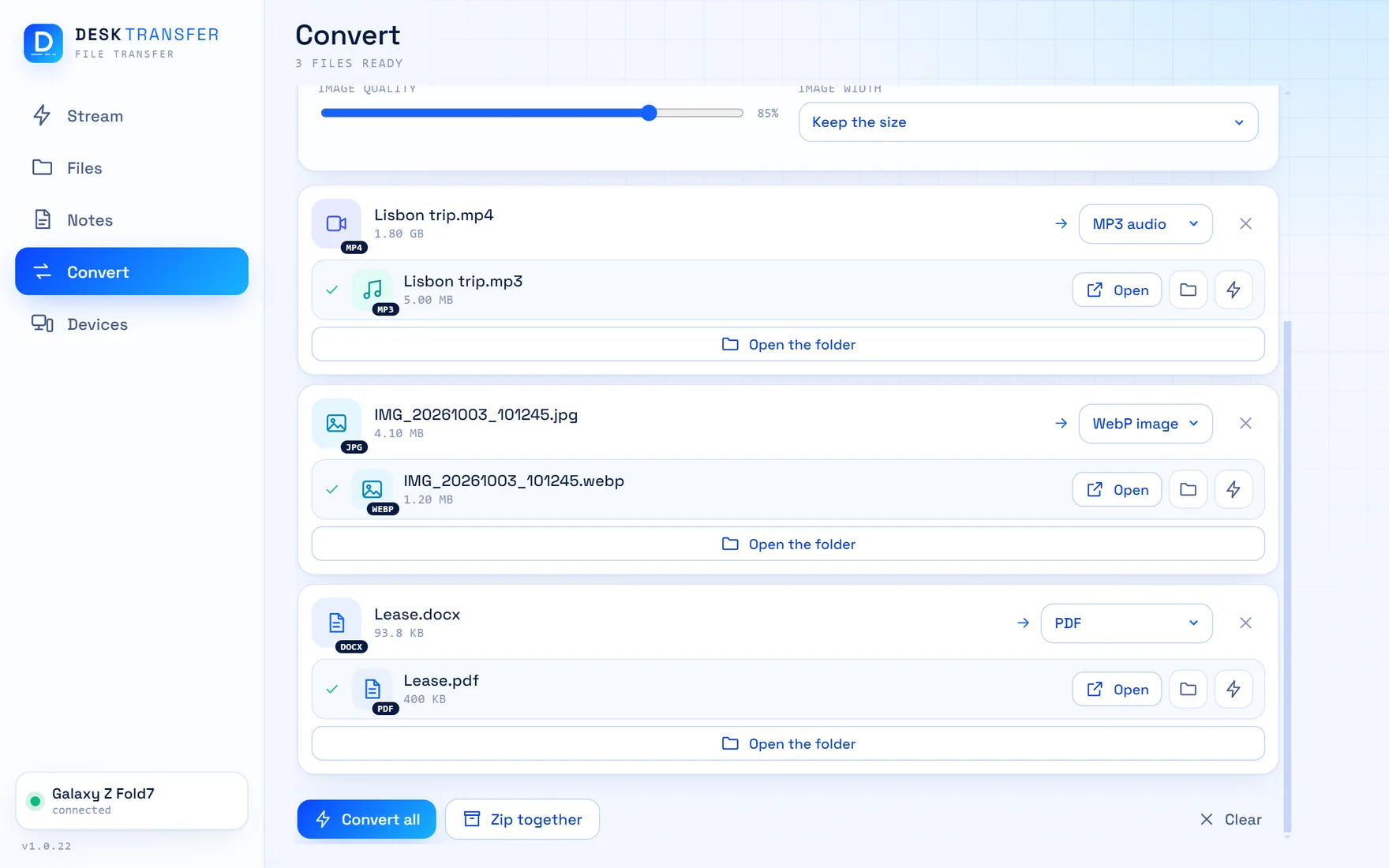
The right format, without another app
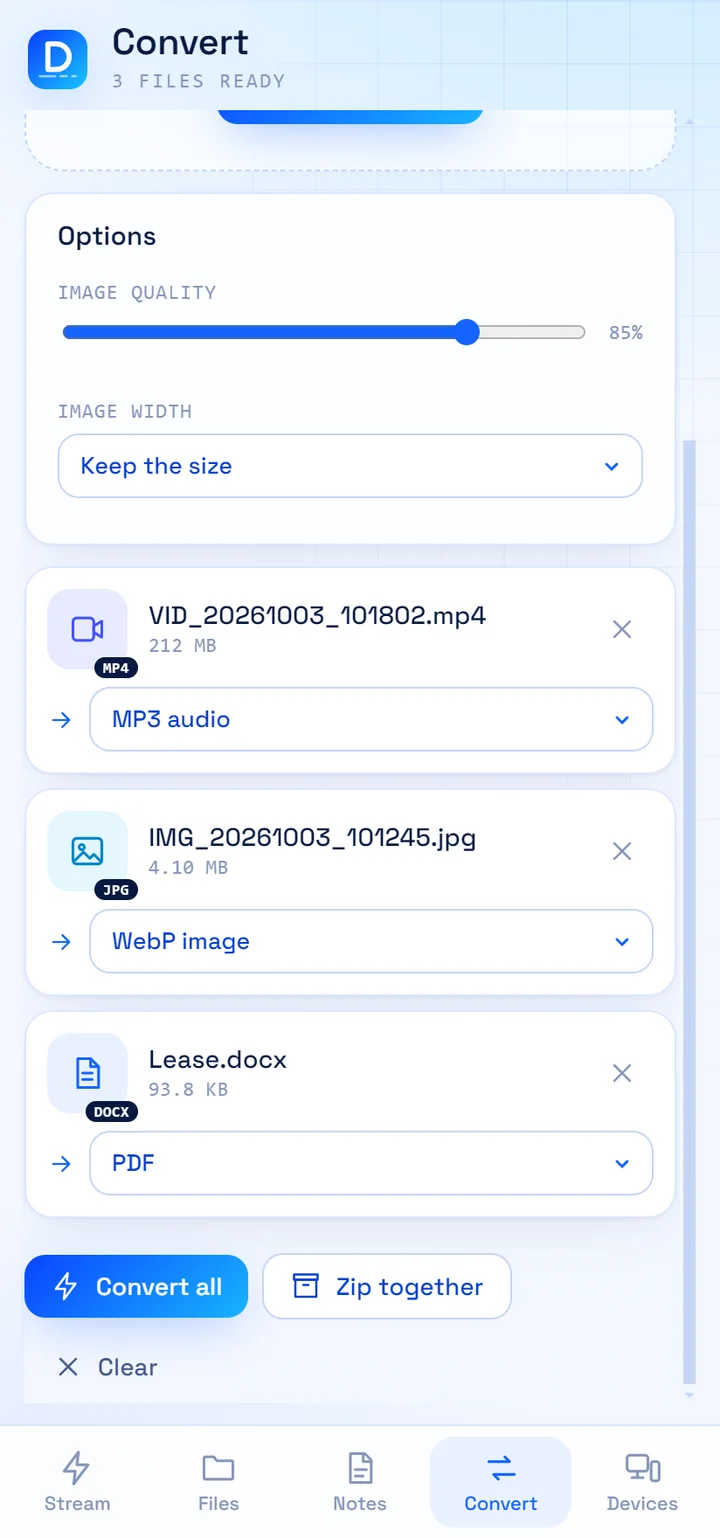
Pick files, choose what each should become, and press Convert. From the phone, the file goes to the PC, is converted there and comes back, so the phone stays cool.
- Images: PNG, JPG, WebP, AVIF, GIF, TIFF, and into PDF
- Documents: text, Markdown, web pages, Word and PDF
- Video and audio: MP4, WebM, MKV, MP3, M4A, FLAC and more
- Zip and unzip
Send it to yourself, without the detour
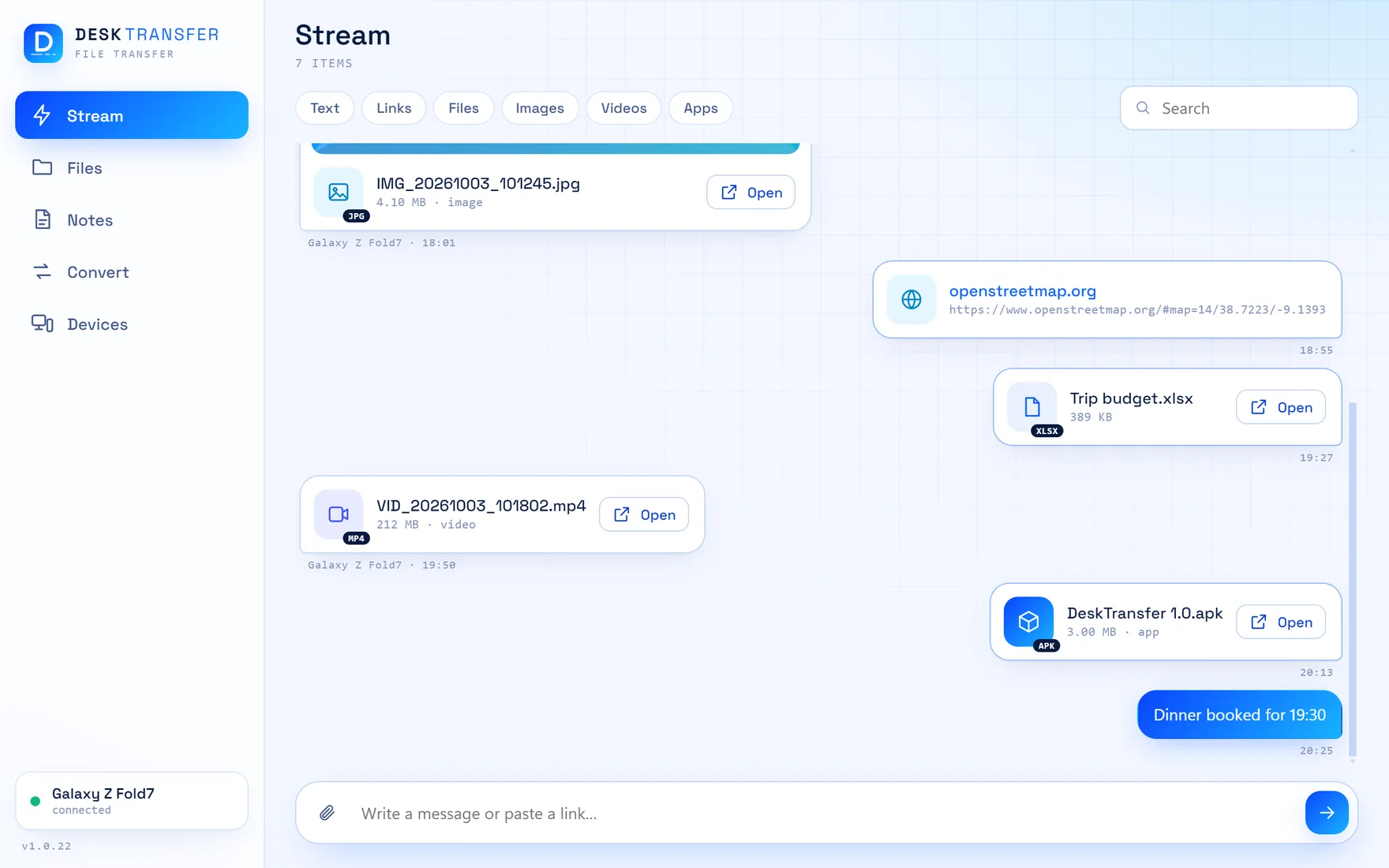
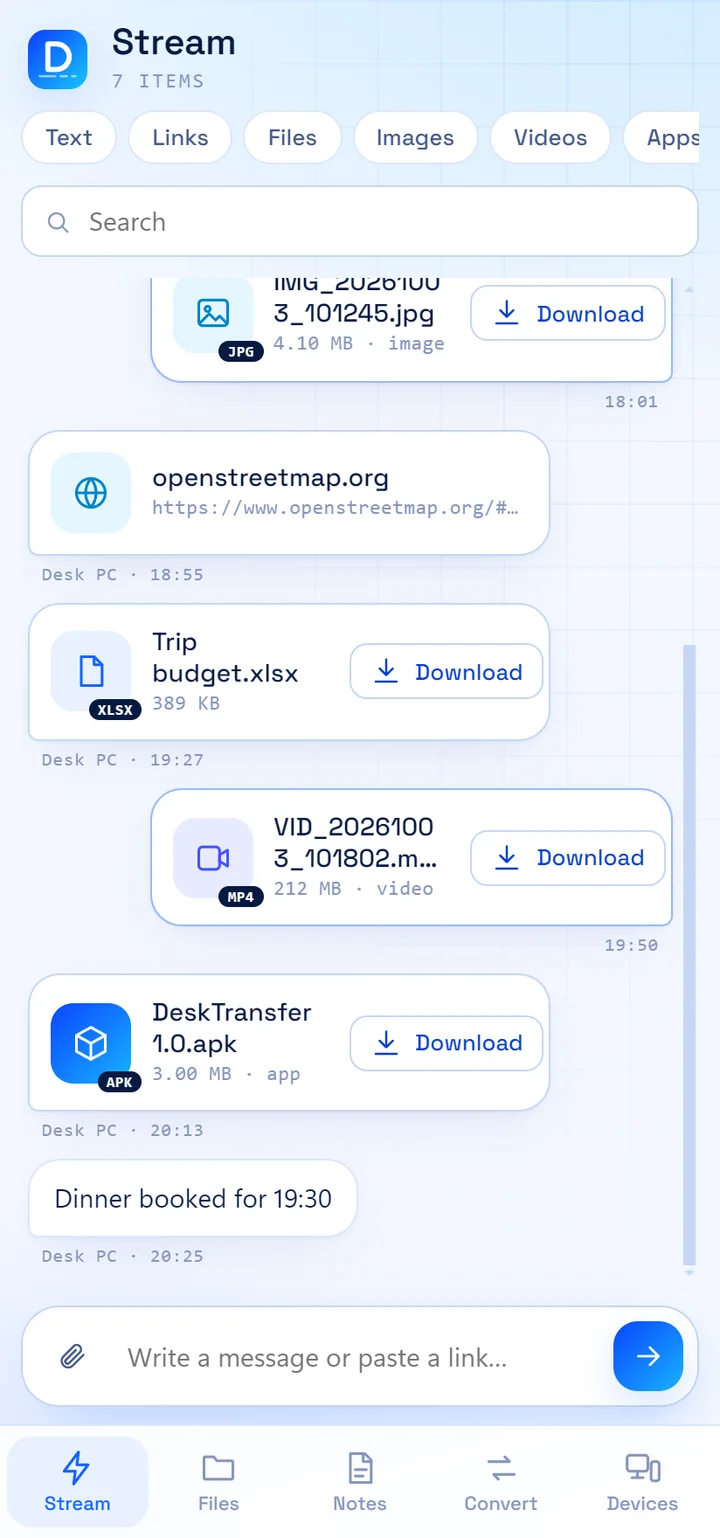
The quick way for a photo, a link or an app file. It appears on the other device at once and stays there to find again.
- Drag and drop on the PC, Share menu on the phone
- Filters for text, links, files, images, videos and apps
- You choose where files are saved, on each device
- Nothing downloads or installs by itself
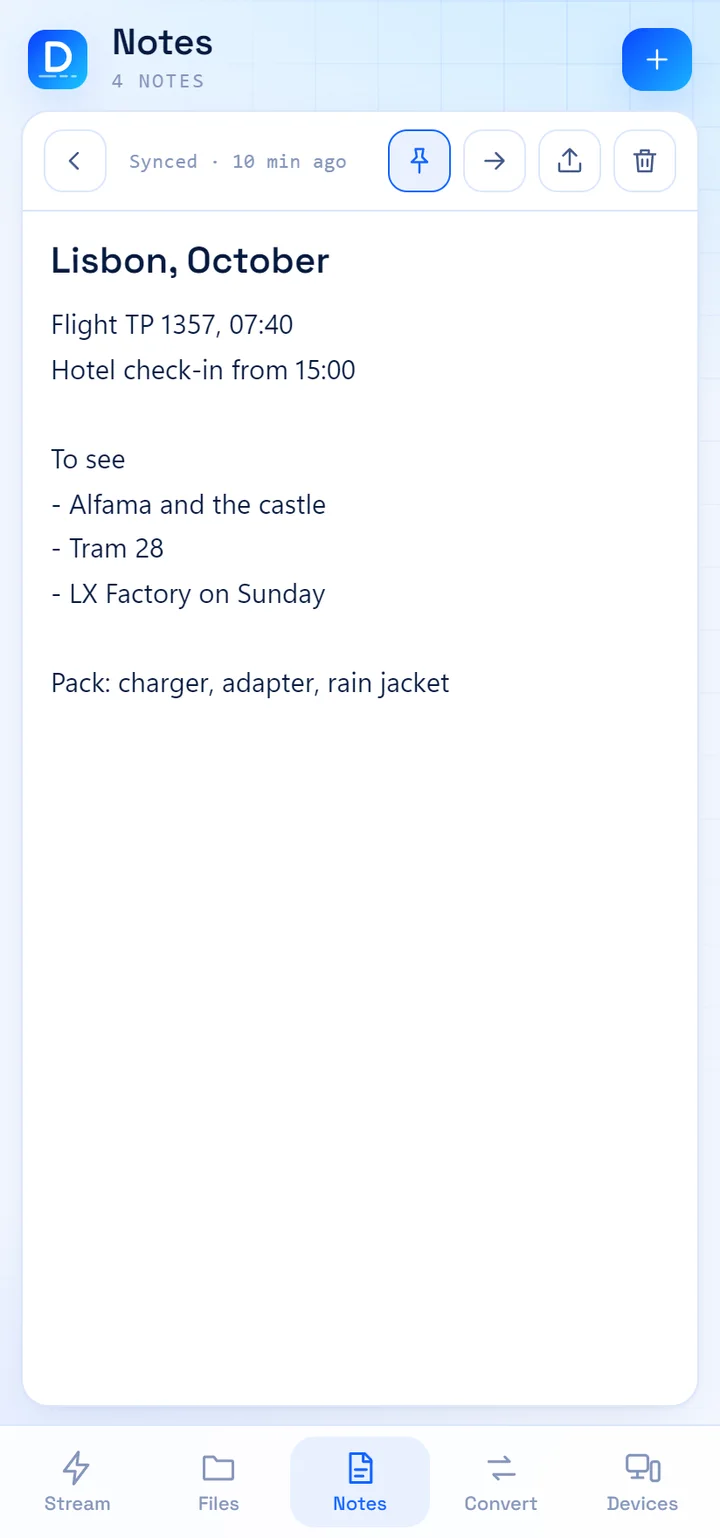
One notebook on both devices
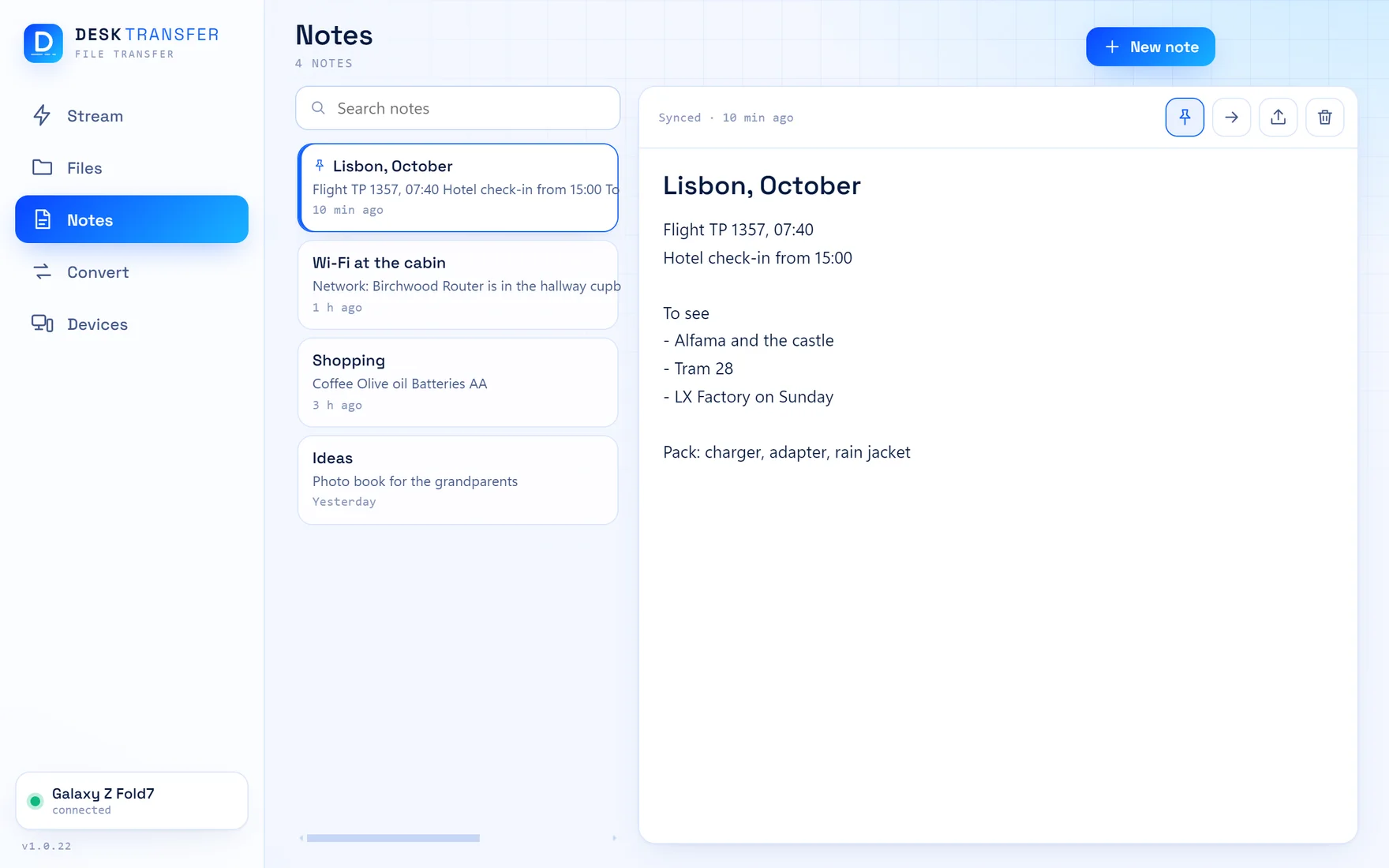
Write on the phone, read on the PC, or the other way round. Notes written without a connection sync when the PC is back in reach.
- The same notes on phone and PC
- Works without a connection
- Pin what matters, export a note as PDF
Linked in a minute
Your PC is the home base. The phone connects to it directly.
Install on your PC
Download DeskTransfer for Windows and start it. It stays in the tray so the phone can reach it.
Link your phone
On the PC, open Devices and press Link a device. Scan the QR picture with the phone app, then say Yes on the PC.
Send
That is all. Files, links and notes now go straight between the two, at home and away.
Your files never visit us
Most transfer apps send your files through their servers. DeskTransfer has no servers. What you send goes from one of your devices to the other, and that is the whole journey.
- Encrypted between your devicesThe phone remembers your PC's certificate when you link them, and talks to no other.
- Nothing collectedNo account, no analytics, no ads, no crash reports sent anywhere.
- You decide what the PC sharesA linked phone sees one folder until you switch on access to the rest.
- The app does not phone homeIt makes no connection to this website or any other. Updates are yours to install.
Get DeskTransfer
Free. You need both: the program on your PC and the app on your phone.
Windows
Download for WindowsAndroid
Coming soon to Google PlayGood to know
Is it really free?
Yes. The app is free, with no ads and no trial period.
Does it need the internet?
Not at home. Phone and PC talk over your own Wi-Fi. To reach your PC from outside, both need an internet connection and Tailscale, a free private-network app that you set up yourself.
How fast is it?
As fast as the connection between the two devices. On home Wi-Fi that is usually your Wi-Fi's speed; a PC on a network cable is faster than one on Wi-Fi. The app has a speed test under Devices that shows what your network gives.
Does my PC have to be on?
Yes. The PC is the home base: it holds the stream and the notes, and does the converting. DeskTransfer stays in the tray so the phone can reach it while the PC is on.
Why does the phone app ask for access to all files?
For the Files section, which is a file manager: it shows your phone's folders so you can copy and move things. You switch that access on yourself, and everything else in the app works without it.
Does it work with an iPhone or a Mac?
No. DeskTransfer is for Android phones and Windows PCs.
How do I update?
The phone app updates through Google Play. For the PC, download the newer installer from this page and run it; your settings and data are kept. The app tells you when the two versions do not match.